

Switching from Android to iPhone is exciting — until you think about your photos, contacts, messages, and apps. The good news is that moving your digital life across platforms has never been easier. Apple, Google, and a handful of third-party tools now handle most of the heavy lifting, and the whole process usually takes under an hour.
This guide walks through every method, what transfers and what doesn’t, and how to fix the problems most people run into.
Before You Start: The Prep Checklist
A little preparation saves a lot of frustration. First, charge both phones to at least 50% (or keep them plugged in) — a dead battery mid-transfer can corrupt data. Second, connect both phones to Wi-Fi; the transfer moves gigabytes, and you don’t want it eating your mobile data.
Third, make sure your new iPhone is on the setup screen. The easiest transfer method only works during initial setup — if you’ve already finished setting up the iPhone, you’ll need to erase it (Settings > General > Transfer or Reset iPhone > Erase All Content and Settings) and start over to use it.
Finally, update your Android phone and its apps to the latest versions, and note down any two-factor authentication apps you’ll need to reconfigure — authenticator apps generally do not transfer automatically.
Method 1: Apple’s Move to iOS App (Easiest)
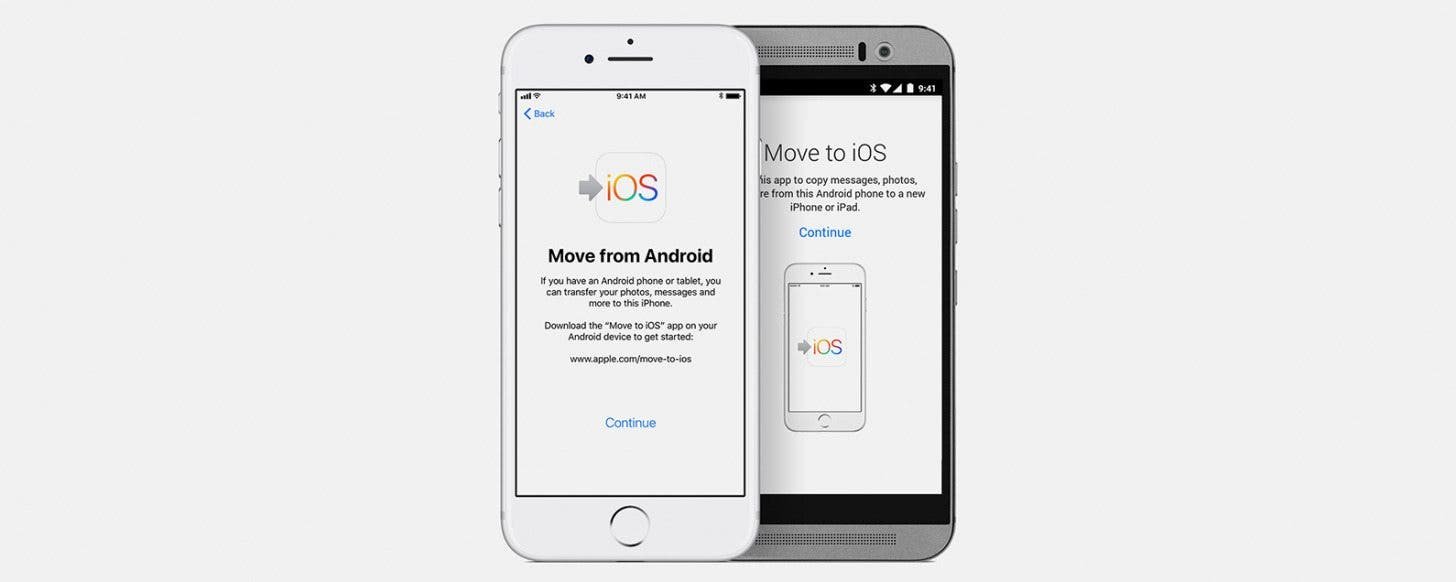
Apple’s free “Move to iOS” app on the Google Play Store is the official route, and for most people it’s the only method they’ll need. It creates a private Wi-Fi connection between the two phones and transfers your data directly.
Here’s how it works. On your Android phone, install “Move to iOS” from the Play Store and open it. On your iPhone, proceed through setup until you reach the “Transfer Your Apps & Data” screen, then tap “From Android.” A code appears on the iPhone — enter it on the Android phone to pair them.
You’ll then choose what to transfer: contacts, message history, photos and videos, photo albums, files and folders, accessibility settings, display settings, web bookmarks, mail accounts, and calendars. Free apps that exist on both platforms transfer too (you’ll need to re-download them from the App Store, but iOS adds them to your home screen automatically).
Tap Continue and let it run. A 64 GB transfer typically takes 20–40 minutes. Keep both phones close together and don’t use either one during the transfer — switching apps on the Android phone is the most common cause of stalled transfers.
Method 2: Google Account Sync (Best for the Cloud-Minded)
If your digital life already lives in Google’s cloud, much of your data moves itself. Sign in to the same Google account on the iPhone, and your Gmail, Google Calendar events, and Google Contacts sync automatically through the built-in Mail, Calendar, and Contacts apps (or Google’s own iOS apps).
For photos, install Google Photos on the iPhone and sign in — your entire library appears without transferring a single file, since it was already in the cloud. This method is nearly instant and doesn’t require wiping the iPhone, but it only covers Google-ecosystem data: WhatsApp chats, SMS history, and app data still need another method.
Method 3: Manual Transfer for Specific Data
Sometimes you only need certain things. For photos and videos, connect the Android phone to a computer, copy the DCIM folder, then import it into the iPhone via a Mac (Finder) or a Windows PC (iTunes or the Apple Devices app). For music files, the same drag-and-drop approach works.
WhatsApp deserves special mention: open WhatsApp on Android, go to Settings > Chats > Move chats to iOS, and follow the prompts with both phones on the same Wi-Fi network. This must be done during iPhone setup with the Move to iOS flow — it’s the only official way to carry your WhatsApp history across platforms.
Documents and files in Google Drive, Dropbox, or OneDrive need no transfer at all — just install the app on the iPhone and sign in.
What Doesn’t Transfer (and Workarounds)
Some things simply can’t cross the platform divide. Paid apps must be repurchased on the App Store — there’s no cross-platform license. App login sessions expire, so you’ll sign in again everywhere (a password manager makes this painless).
SMS and call history transfer via Move to iOS, but RCS messages may arrive as plain SMS threads. Your Android home-screen layout, widgets, and system settings don’t transfer — you’ll rebuild them, which is honestly a good opportunity to declutter. And anything stored in Android-only apps with no iOS version stays behind; export its data (usually as CSV or PDF) before you switch.
Fixing the Most Common Problems
If Move to iOS stalls or disconnects, the culprit is almost always Wi-Fi interference. Turn off mobile data on the Android phone, forget other Wi-Fi networks temporarily, and disable any VPN. Restarting both phones before retrying fixes most remaining cases.
If the transfer completes but photos are missing, check Google Photos on Android — the app may have been set to back up rather than store locally, in which case your photos are already safe in the cloud and just need the Google Photos iOS app.
Running out of space on the iPhone mid-transfer? The setup screen warns you, but if you missed it, you’ll need a larger-capacity iPhone or to trim the Android phone’s storage (delete downloaded Netflix shows, clear the Telegram cache) before retrying.
After the Transfer: The First-Hour Checklist
Once your data lands, do these five things. Sign in to iCloud and turn on iCloud Backup so you never have to do a manual migration again. Re-enable two-factor authentication apps (Google Authenticator, Authy) by scanning your backup QR codes or using account recovery. Check that your phone number is verified for iMessage and FaceTime. Download your essential apps from the App Store and sign in. And finally, keep the Android phone around for a week or two before wiping or trading it in — just in case something didn’t make the trip.
Conclusion
Moving from Android to iPhone in 2026 is a solved problem: use Move to iOS during setup for the full transfer, lean on your Google account for cloud data, and handle WhatsApp and authenticator apps deliberately. An hour of careful work now means zero missing photos, contacts, or conversations later — and a fresh start on your new phone.