

Your laptop dies at the worst possible moment — during a client call, halfway through a flight, or just before you hit send. The good news is that you do not need a new battery or an expensive replacement machine to fix most of this. A handful of settings that most people never touch can push a tired laptop from two shaky hours to four or five solid ones. Here are the eight changes that make the biggest real-world difference in 2026.
1. Turn Down Screen Brightness (Seriously)
The display is the single biggest battery drain on almost every laptop. Dropping brightness from 100% to 60-70% typically cuts display power draw by a third to a half, and most people cannot even tell the difference indoors. On Windows, head to Settings > System > Display and set brightness around 50-60% for everyday work. On macOS, go to System Settings > Displays. Also shorten the screen timeout: Settings > Power & battery > Screen and sleep (Windows) or System Settings > Lock Screen (Mac). A screen that turns off after two idle minutes instead of ten adds up fast over a workday.
2. Switch to Battery Saver Mode
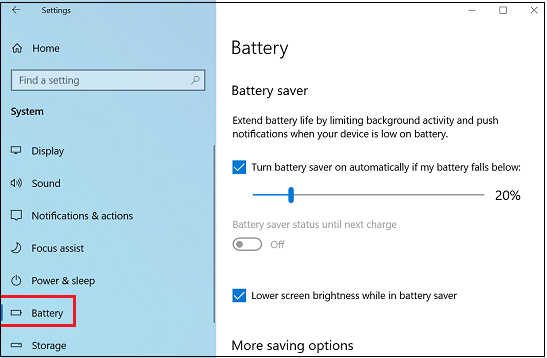
Both Windows 11 and macOS have a proper low-power mode. On Windows, click the battery icon in the taskbar and drag the slider to “Best power efficiency,” or set Battery Saver to turn on automatically at 30% in Settings > System > Power & battery > Battery Saver. On a Mac, go to System Settings > Battery and set Low Power Mode to “Always.” These modes throttle background sync, mail fetch, visual effects, and CPU boost clocks. For browsing, writing, and email you will barely notice — and the extra hour or more is well worth it.
3. Kill Background Apps You Forget Are Running
Slack, Spotify, cloud sync tools, game launchers, and updaters run quietly all day, waking the CPU every few minutes. Open Task Manager on Windows (Ctrl+Shift+Esc), check Processes sorted by power usage, and close what you do not need. Go to Settings > Apps > Startup and disable anything that does not need to launch at boot. On Mac, check Activity Monitor’s Energy tab, and review Login Items under System Settings > General. Browsers deserve special attention: twenty open tabs with auto-playing video can drain a battery faster than a video call.
4. Fix Your Charging Habits
Batteries wear faster when they sit at 100% plugged in all day, and they hate being drained to zero regularly. If you mostly work at a desk, enable the battery charge limit your manufacturer offers — many Lenovo, ASUS, Dell, and Apple machines let you cap charging at 80%, which dramatically slows long-term degradation. On newer MacBooks, System Settings > Battery > Battery Health has an 80% limit option. Try to keep the battery between roughly 20% and 80% day to day.
5. Lower Refresh Rate and Keyboard Backlight
If you own a gaming or creator laptop with a 120Hz or higher display, that smooth scrolling costs real power. Switch to 60Hz when on battery: Windows Settings > System > Display > Advanced display. Same story with RGB keyboards and backlit keys — turn the backlight to low or off during the day. These two tweaks alone can add 30-60 minutes on a gaming laptop.
6. Manage Wi-Fi, Bluetooth, and Location
Every radio sips power even when idle. Working offline? Toggle Airplane Mode and watch the battery estimate jump. Turn off Bluetooth if you are not using wireless earbuds or a mouse. On Windows, check Settings > Privacy & security > Location and disable access for apps that do not need it. Together they stop the slow background trickle that eats 5-10% of your battery while the laptop just sits there.
7. Update Drivers and Check Battery Health
Outdated graphics or chipset drivers can prevent the CPU from entering low-power states. Run Windows Update and your manufacturer’s driver tool monthly. Then check battery health: on Windows, run powercfg /batteryreport in Terminal — if full charge is below 75-80% of design capacity, the battery itself is worn. On Mac, hold Option and click Apple menu > System Information > Power. Knowing whether you have a settings problem or a hardware problem tells you whether to tweak or replace.
8. Use Sleep and Hibernate Properly
Closing the lid to “sleep” still draws power, and on Windows laptops with Modern Standby that draw can be surprisingly high overnight. If you will not use the laptop for more than a few hours, use Hibernate: it saves your session to disk and draws essentially zero power. Enable it in Control Panel > Power Options. Also unplug USB drives and dongles when on battery — they draw power even when idle.
The Bottom Line
You do not need all eight changes. Start with the top three — brightness, Battery Saver, and background apps — and you will feel the difference the same day. Add the charge-limit habit and you protect the battery you have for the long run. If your battery report still shows heavy wear after all this, that is often a quick replacement on many models, not a new-laptop problem. Small settings, real hours back.