

Is your Google Drive almost full? That “Storage almost full” warning is one of the most annoying popups in the Google universe — and once you hit the free 15 GB limit, Gmail stops receiving emails and Google Photos stops backing up. The good news: most people can reclaim several gigabytes in about 30 minutes with a simple cleanup routine. Here is exactly how to do it.
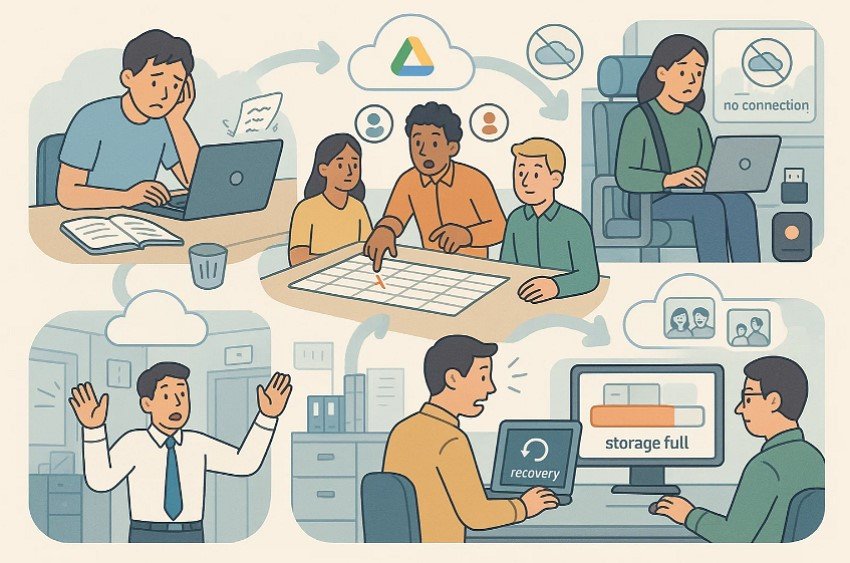
Step 1: See What’s Eating Your Storage
Before deleting anything, open Google Drive on a desktop browser and check the big picture. Click the gear icon, then “Settings,” and scroll down to see your storage breakdown across Drive, Gmail, and Google Photos. Google One members can also visit one.google.com/storage for a cleaner visual breakdown.
Next, click “Storage” in the left sidebar of Google Drive (on desktop it’s at the bottom of the left panel). This sorts all your files from largest to smallest. That one 3 GB video from a 2022 family trip sitting at the top of the list might be worth downloading to an external drive and removing from the cloud.
Step 2: Search for the Big Files First
Google Drive has powerful search operators that make cleanup fast:
- Type larger:500M in the search bar to find every file bigger than 500 MB.
- Type larger:100M to catch everything over 100 MB.
- Combine with type:video to find space-hogging videos instantly.
Videos are almost always the biggest culprits. Old screen recordings, duplicated phone backups, and forgotten downloads can eat gigabytes. Download anything you want to keep to your computer or an external drive, then delete the cloud copy.
Step 3: Clear the Trash (The Step Everyone Forgets)
Here is the trap: deleting files in Google Drive does not free up space until you empty the trash. Deleted files sit in the Trash for 30 days, still counting against your quota.
Go to Trash in the left sidebar, click “Empty trash” at the top, and confirm. On a cluttered account, this one click alone can free up several gigabytes. Just double-check nothing in there was deleted by accident — once emptied, files are gone for good.
Step 4: Attack Gmail’s Hidden Storage Hog
Your free 15 GB is shared across Drive, Gmail, and Google Photos, and Gmail attachments are a silent storage thief. Search Gmail for:
- has:attachment larger:10M — emails with attachments bigger than 10 MB
- older_than:5y — emails older than five years
You’ll likely find ancient newsletter PDFs, duplicated photo attachments, and forwarded videos you never needed. Select them in bulk and delete. Don’t forget to empty Gmail’s Trash afterward (Settings → More → Trash → “Empty Trash now”).
Step 5: Tame Google Photos
Photos and videos backed up at original quality consume Drive storage. Visit photos.google.com/settings and consider switching future uploads to “Storage saver” quality, which is nearly indistinguishable for most people and uses far less space.
Also search Photos for “videos” — old screen recordings and blurry clips are prime deletion candidates. Remove duplicates too: Photos sometimes backs up the same image twice after a phone reset.
Step 6: Disconnect Apps You Don’t Use
Over the years, you’ve probably connected dozens of apps to Google Drive — old project tools, random mobile games, expired trials. Each one can store hidden app data.
Go to drive.google.com/settings, click “Manage apps,” and remove anything you don’t recognize or no longer use. Check the “Hidden app data” option for each — some apps store hundreds of megabytes of invisible data that gets deleted when you disconnect them.
Step 7: Convert Your Files to Google Formats
Here’s a storage secret: Google Docs, Sheets, and Slides files don’t count against your storage quota at all. If you have Word documents, Excel spreadsheets, or PowerPoint files stored in Drive, convert them.
Right-click a file, choose “Open with” then “Google Docs,” then save the converted copy and delete the original. For a one-time bulk conversion, go to Drive Settings and check “Convert uploaded files to Google Docs editor format” before re-uploading — though it’s usually easier to convert the files already there.
Step 8: Organize What’s Left
Cleanup isn’t just deletion. Create a simple folder structure — “Archive,” “Work,” “Personal” — and move the keepers. Rename files with clear, dated names. Future-you will thank present-you when searching actually works.
While you’re at it, check the “Shared with me” section. Files shared with you don’t count against your quota unless you add them to your Drive, so remove shortcuts to files you no longer need.
Conclusion
Thirty minutes of focused cleanup — hunting big files, emptying the trash, purging old attachments, and disconnecting forgotten apps — can easily reclaim 5 to 10 GB on a cluttered account. Set a calendar reminder to repeat this routine twice a year, and you’ll never see that “Storage almost full” warning again. And if you genuinely need more space after a real cleanup, Google One’s 100 GB plan is one of the cheapest cloud upgrades around — but make it the last resort, not the first.