

If your phone feels slower than it used to, apps crash for no clear reason, or storage keeps disappearing, the culprit is often cached data. Cache is temporary information that apps and browsers store so they can load faster next time. Over months of use, though, that temporary data piles up, goes stale, and starts causing problems instead of solving them. Clearing it is one of the safest, simplest maintenance tasks you can do, and it takes only a few minutes. Here is how to clear cache on Android and iPhone in 2026, what each option actually does, and when you should — and should not — use it.
What Cache Is and Why It Builds Up
Every time you open an app, it saves small files locally: thumbnails, login tokens, article previews, map tiles, and pieces of web pages. The next time you open that app, it reads those files instead of downloading everything again, which makes it feel fast. The trouble is that apps rarely clean up after themselves. A social media app you scroll through daily can quietly hold several gigabytes of cached images and videos, and a browser can keep months of old site data. Cached files can also go corrupt, which is why an app that worked fine yesterday suddenly refuses to load today. Clearing the cache forces the app to fetch fresh data, which usually fixes glitches without touching your personal content.
Clearing Cache on Android
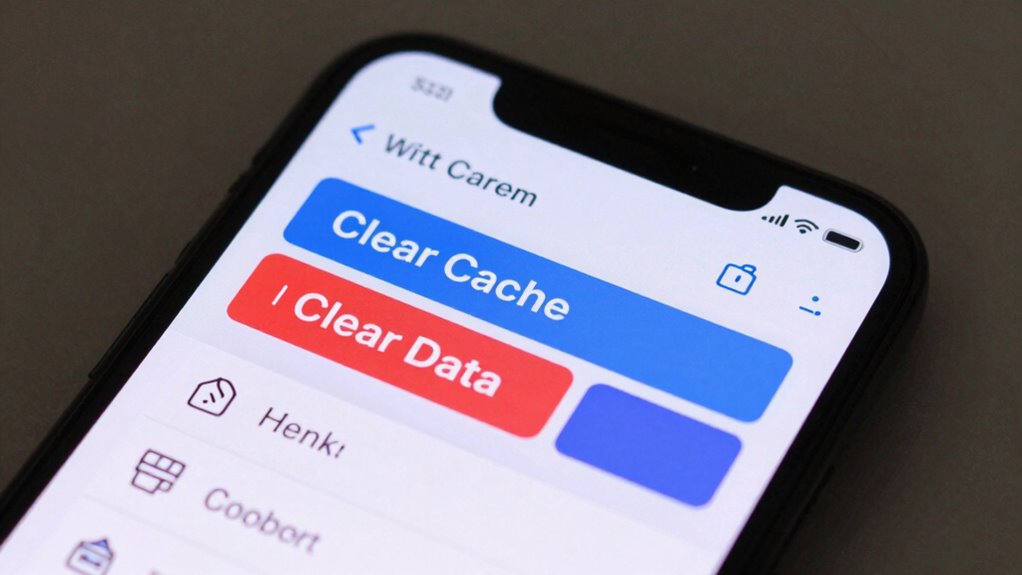
Android gives you the most control, and you can clear cache for a single app or for your whole browser. Start with the worst offenders: open Settings, then Apps, and look at the storage used by each app. Tap an app, choose Storage, and tap Clear Cache. This removes temporary files only — your login, settings, photos, and messages stay exactly where they are. Do not tap Clear Data by mistake: that button resets the app completely and signs you out.
For Chrome on Android, open the browser, tap the three-dot menu, and go to Settings, then Privacy and security, then Delete browsing data. Choose Cached images and files, pick a time range, and confirm. If a single app keeps misbehaving, clearing its cache is the first fix worth trying before uninstalling it. Some Android phones also offer a storage cleaner in Settings that finds large cache totals across apps, which is a handy shortcut if you would rather not check apps one by one.
Clearing Cache on iPhone
Apple handles cache differently: iOS does not offer a single clear-all-cache button, and most apps do not expose a cache setting at all. Safari is the exception. Open Settings, tap Safari, and choose Clear History and Website Data to remove cached pages, cookies, and browsing history in one go. If you only want to clear cached website data without losing history, go to Settings, Safari, Advanced, Website Data, and remove data for individual sites.
For other apps on iPhone, the options are more limited. Some apps, like Telegram or TikTok, include their own cache controls inside their settings menus — look for a storage or data usage section and clear it there. For apps without that option, the only reliable way to clear the cache is to delete the app and reinstall it. Before you do that, make sure your chats, photos, and documents are backed up or synced to the cloud, because reinstalling removes the app’s local data. After reinstalling, the app starts with a clean cache and usually runs noticeably faster.
What Clearing Cache Will Not Do
It is worth knowing the limits. Clearing cache will not free as much space as deleting photos or unused apps, and it will not fix a phone that is slow because its storage is nearly full or its battery is worn out. Some apps will also feel slightly slower the first time you open them after a cache clear, because they need to download fresh data again — that is normal and passes within a day. Clearing cache does not delete your accounts, messages, or saved files, and it does not make your phone less secure. It is maintenance, not a reset, and it is safe to repeat whenever an app starts acting up.
How Often Should You Clear Cache?
For most people, every few months is plenty. Heavy social media and video users may benefit from a monthly clear of their biggest apps, and anyone troubleshooting a crashing or freezing app should try a cache clear first, before more drastic steps. A good routine is to check your phone’s storage once a month, look at which apps are using the most space, and clear the cache of the top two or three. Combined with deleting screenshots you no longer need and offloading unused apps, this keeps a phone feeling responsive for years rather than months.
Conclusion
Clearing cache is a small habit with an outsized payoff: it frees storage, fixes stubborn app glitches, and keeps your phone running smoothly without deleting anything important. Android users can clear cache app by app in Settings, iPhone users can clear Safari’s data directly and reinstall the occasional misbehaving app, and everyone should remember the golden rule — clear cache, never clear data, unless you are prepared to set the app up from scratch. Spend five minutes on it today, and your phone will thank you with faster loads and fewer surprises.