

A password alone no longer protects anything. Data breaches leak millions of credentials every year, and attackers buy those lists cheaply to break into accounts that still rely on a single password. Two-factor authentication (2FA) is the single most effective defense you can add: it requires a second proof of identity at sign-in, so a stolen password alone is not enough. This guide walks you through setting up 2FA on every account that matters, explains which method to choose, and covers what to do when things go wrong.
How Two-Factor Authentication Actually Works
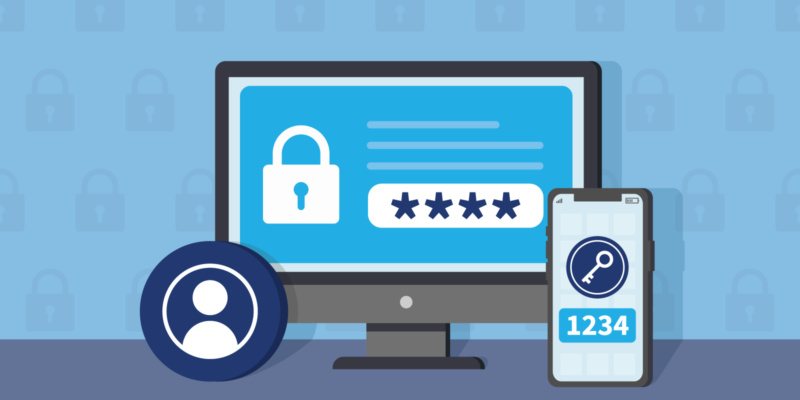
After you enter your password, the service asks for a second factor — something you have. The most common second factor is a six-digit code that changes every 30 seconds, generated by an authenticator app on your phone. Other methods include SMS text codes, push-approval notifications from an official app, physical security keys that plug into USB or tap via NFC, and passkeys, which are the newest and most phishing-resistant option of all. No method is perfect, but any 2FA is dramatically better than none: it blocks the vast majority of automated account-takeover attacks.
Choose the Right 2FA Method for Each Account
Rank methods from strongest to weakest. Hardware security keys and passkeys sit at the top — they cannot be phished because they verify the real website before signing you in. Authenticator app codes come next and are the best balance of security and convenience for most people. Push approvals are convenient but can be tricked by “MFA fatigue” attacks that bombard you with prompts until you tap approve. SMS codes are the weakest: they can be intercepted through SIM-swapping, where an attacker convinces your carrier to move your number to their phone. Use SMS only as a last resort, and never rely on it for your email or banking.
Start With Your Most Important Accounts
Prioritize in this order: your email accounts first, because email is the recovery key for everything else; then banking and payment apps; then cloud storage and photo backups; then social media; then everything else. Go to each service’s security or privacy settings, find “Two-factor authentication” or “2-Step Verification,” and follow the setup flow. For each account, generate and save the backup or recovery codes the service shows you — these one-time codes are your only way back in if you lose your phone. Store them in a secure, printed or password-manager-kept place, not as a screenshot in your photo gallery.
Use an Authenticator App (and Back It Up)
Download a reputable authenticator app such as Google Authenticator, Authy, or 1Password’s built-in authenticator. When a site shows you a QR code during 2FA setup, scan it with the app, and the app will start generating codes. Turn on the app’s cloud backup or encrypted sync so your codes survive a lost or broken phone — a non-backed-up authenticator is a single point of failure. If you use a password manager, storing TOTP codes there is acceptable for low-risk accounts, but keep your most critical accounts (email, bank) in a separate authenticator app so one compromise does not hand over both factors.
Move to Passkeys Wherever Possible
Passkeys are gradually replacing passwords and app codes. A passkey is a cryptographic key pair stored on your device, unlocked with your fingerprint or face; the private key never leaves your device, so phishing sites get nothing. Google, Apple, Microsoft, and a growing number of banks and services now offer passkeys in their security settings. Where a service supports both, enable the passkey and keep the authenticator app as backup. Passkeys sync through your platform’s password manager, so they survive device changes — but check that your platform’s sync is enabled and your account recovery options are current.
What to Do If You Lose Your Second Factor
If you lose your phone or authenticator, stay calm: this is exactly what recovery codes are for. Use one of the backup codes you saved during setup to sign in, then re-register a new device. If you lost the codes too, use the service’s account-recovery process, which usually involves identity verification by email or ID — this can take days for banks, so prevention is better. For services where you enabled a hardware security key, register two keys and store the spare somewhere safe. And never share your 2FA codes with anyone, ever: no legitimate support agent will ask for them.
Conclusion
Two-factor authentication takes an afternoon to set up and protects you for years. Lock down your email, bank, and cloud accounts first, use an authenticator app with backups instead of SMS codes, adopt passkeys where offered, and save every recovery code. Attackers go after easy targets — with 2FA on every account, yours stops being one.