

The “Storage Almost Full” warning is one of the most annoying notifications in modern life — and it always appears at the worst possible moment. The good news: your photos are rarely the real problem. Most phones are stuffed with forgotten downloads, bloated app caches, duplicate files, and offline content you will never watch again.
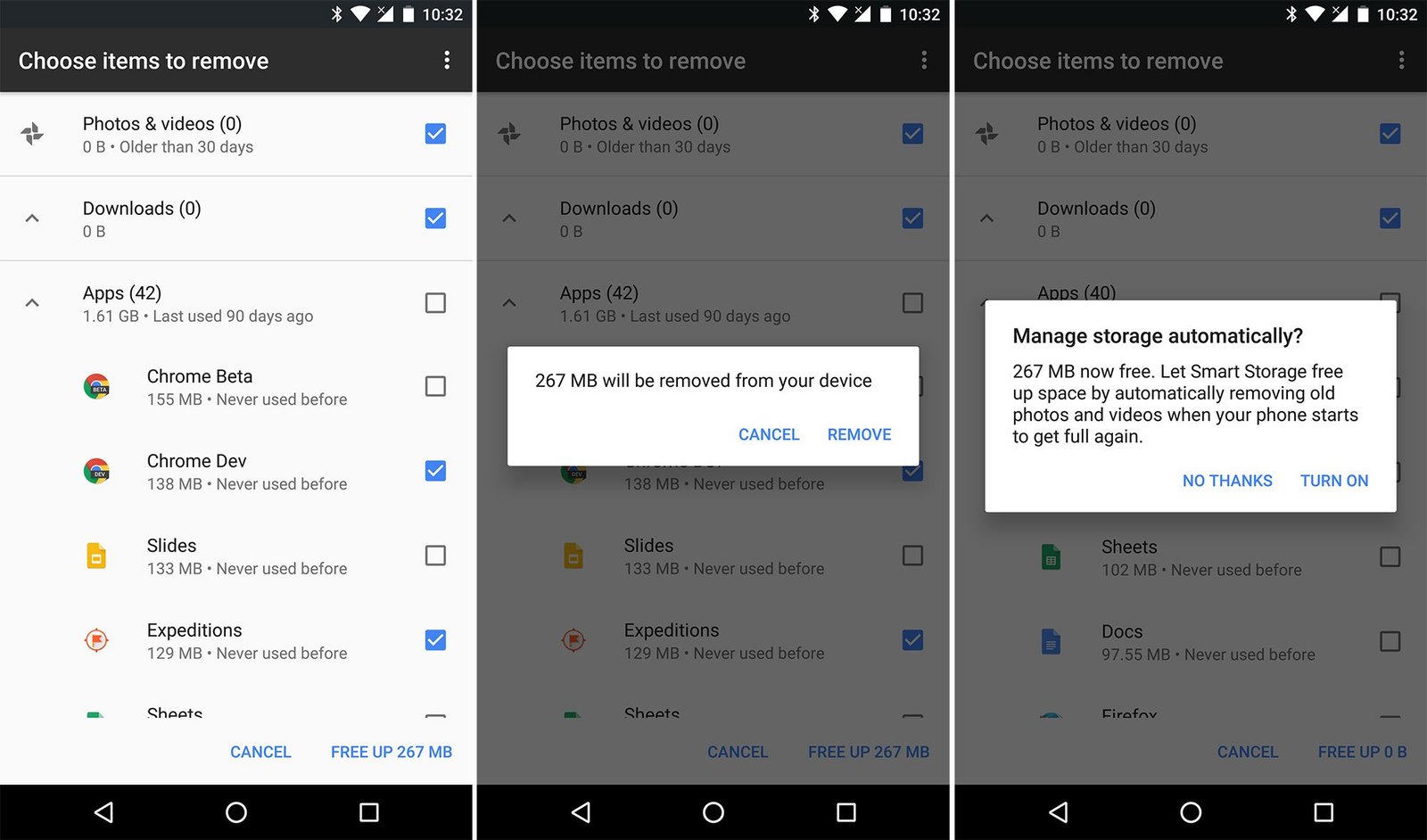
Here is a practical, step-by-step cleanup that frees gigabytes of space without touching a single photo.
Step 1: See What Is Actually Eating Your Storage
Before deleting anything, look at the breakdown — it is usually a surprise.
- On iPhone: Settings > General > iPhone Storage. iOS shows a color-coded bar and lists apps by size, with offload suggestions.
- On Android: Settings > Storage. You will see categories like Apps, Images, Videos, Audio, and System, plus a per-app breakdown.
The biggest culprits are almost always: downloaded videos, chat app media, streaming app offline downloads, and app caches. Now you know where to aim.
Step 2: Clear Bloated App Caches
Apps silently stockpile temporary files — thumbnails, preview images, search history — that can grow into gigabytes.
- On Android: Settings > Apps, pick an app (social media and shopping apps are the worst offenders), then tap Storage > Clear Cache. This is safe — it only removes temporary files, not your logins or data.
- On iPhone: iOS does not offer a system-wide cache button, so open individual apps (browsers, social apps) and look for a “Clear Cache” or “Clear Browsing Data” option in their settings. For stubborn apps, delete and reinstall them.
Warning: Do not tap “Clear Data” (Android) unless you want to log back in and lose offline content. Cache and data are different things.
Step 3: Purge Chat App Clutter
Messaging apps are secret storage hogs. Every meme, voice note, and forwarded video someone sent you is saved on your device — including media from groups you muted months ago.
- WhatsApp: Settings > Storage and Data > Manage Storage. It shows exactly how much each chat consumes, largest files first. Review and delete the big ones.
- Telegram: Settings > Data and Storage > Storage Usage > Clear Cache. Telegram re-downloads anything you need from the cloud later.
- Other apps: Check each app’s settings for a storage or media section.
This step alone can free several gigabytes for heavy group-chat users.
Step 4: Delete Downloaded Media You Have Already Consumed
Streaming apps let you download shows and music for offline use — and then keep them forever, long after you finished them.
- Netflix / YouTube / Prime Video: Open Downloads and delete anything you have already watched.
- Spotify / Apple Music / YouTube Music: Check downloaded playlists and albums. Remove downloads for albums you rarely play; streaming them again costs nothing.
- Podcasts: Many podcast apps auto-download every new episode. Turn off auto-downloads and delete played episodes in bulk.
Step 5: Offload or Remove Apps You Never Use
Be honest: how many apps on your phone have you opened in the last three months?
- On iPhone: Settings > General > iPhone Storage, tap any app, and choose “Offload App.” This removes the app but keeps its documents and data, so reinstalling later restores everything.
- On Android: Uninstall apps you do not use. For apps you use rarely, many launchers support disabling bloatware that came preinstalled.
Games are the heaviest single items — a single mobile game can occupy 3–5 GB. If you finished a game, remove it; your progress is usually saved to your account.
Step 6: Clean the Downloads Folder
That PDF you opened once from an email, the installation files, the random ZIPs — they live in Downloads and nobody ever looks there again. Open your file manager, sort by size, and delete what you do not need. It takes two minutes and the results are satisfying.
Step 7: Turn On Smart Storage Features
Both platforms can prevent the problem from coming back:
- iPhone: Settings > General > iPhone Storage > “Offload Unused Apps” (automatic), plus iCloud Photos with “Optimize iPhone Storage,” which keeps full-resolution photos in the cloud and lightweight versions on your phone.
- Android: Google Photos’ “Free up space” removes local copies of photos already backed up. Many phones also offer automatic storage management that clears old backups and cached files.
Set these up once, and the full-storage warning becomes rare.
How Much Space Can You Expect to Recover?
Every phone is different, but a typical first cleanup recovers 5–15 GB: a couple of gigabytes from caches, several from chat media, and the rest from downloads and unused apps. For a 64 GB phone, that is the difference between constantly deleting things and never thinking about storage at all.
Conclusion
Running out of phone storage is almost never about your photos. The real space thieves are hidden in plain sight: app caches, chat clutter, forgotten downloads, and apps you stopped using a year ago. Work through these seven steps in order — check the breakdown, clear caches, purge chat media, delete consumed downloads, offload dead apps, clean Downloads, and enable smart storage — and you will reclaim gigabytes without losing a single memory.