

If your Android phone used to last all day and now struggles to reach the evening, you are not alone. Battery drain is one of the most common complaints in 2026, even on phones that are only a year or two old. The good news is that most battery problems are not caused by a dying battery. They are caused by apps, settings, and background activity that you can fix in under thirty minutes.
This guide walks you through the exact checks that actually make a difference, in the order you should try them. No root, no risky apps, and no factory reset as a first step.
Why Your Android Battery Drains Faster Than Before
Before fixing anything, it helps to understand what changed. Android phones rarely slow down because the hardware suddenly got worse. Usually, three things happen over time. First, you install more apps, and many of them keep running in the background. Second, screen brightness, refresh rate, and always-on features quietly stay at their highest settings. Third, a single badly behaved app after an update can drain more power than everything else combined.
Heat makes everything worse. A phone that runs hot will charge slower, throttle performance, and age its battery faster. So when you fix battery drain, you often fix speed at the same time.
Step 1: Find the App That Is Eating Your Battery
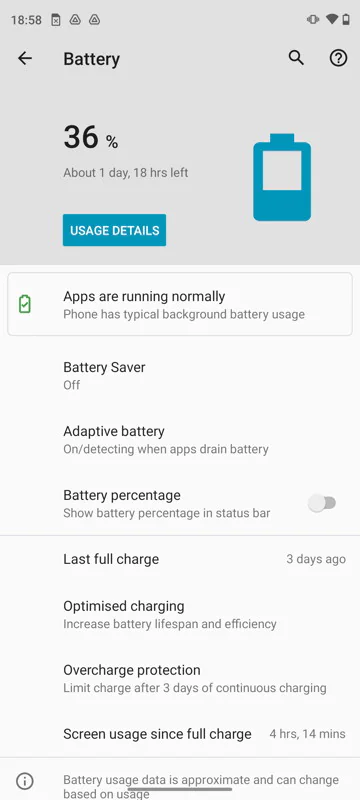
Start with facts, not guesses. Open Settings, then Battery, then Battery usage. Look at the list for the last 24 hours. A healthy phone shows the screen and your most-used apps at the top. If a social app, game, or shopping app you barely opened is near the top, that is your culprit.
Tap the app name to see how much time it spent active in the background. If background time is high, restrict it. On most phones you can choose Restricted under Battery settings for that app. Do not restrict messaging, banking, or alarm apps, because you may miss important notifications.
If nothing looks unusual, check again after a full day. One bad day can be a fluke. Two days with the same app on top is a pattern.
Step 2: Fix the Screen, Your Biggest Battery User
The display is almost always the largest power consumer. Lowering a few display settings gives the fastest visible gain.
Set brightness to auto, or keep it manually below 60 percent indoors. Turn off the always-on display, or schedule it only for waking hours. If your phone supports a high refresh rate like 120Hz, try switching to standard 60Hz or adaptive mode for a week and compare. Many people cannot see a huge difference in daily use, but the battery difference is real.
Also shorten the screen timeout to 30 seconds or one minute. A phone that stays awake for five extra minutes dozens of times a day wastes a surprising amount of charge.
Step 3: Stop Background Drain Without Breaking Your Phone
Go to Settings, Apps, and review apps you no longer use. Uninstall them instead of just ignoring them. Old apps still update, sync, and wake your phone.
For apps you keep, check permissions. Location access set to “all the time” for apps that only need it while in use is a quiet battery killer. Change those to “only while using the app”. Weather, delivery, and shopping apps are common offenders.
Turn off Bluetooth, GPS, and mobile hotspot when you are not using them. Modern Android handles this better than before, but in weak-signal areas your phone will still work hard searching for networks — and that is pure battery loss.
Step 4: Use Battery Saver the Smart Way
Battery Saver is not just for emergencies. Many phones now let you schedule it, for example turning on at 30 or 40 percent. That alone can add an hour at the end of the day when you need it most.
Also look for Adaptive Battery in Settings. Keep it on. It learns which apps you use rarely and limits their background activity automatically. If you turned it off while troubleshooting in the past, turn it back on and give it a few days to learn again.
Avoid third-party “battery booster” and “phone cleaner” apps. Most of them run constantly in the background, show ads, and close apps that Android then restarts — which uses more power than it saves.
Step 5: Check Battery Health and Charging Habits
If your phone is more than two years old, check battery health. Some brands show it directly in Settings under Battery or Device care. If health is well below 80 percent, software fixes will only help a little, and a battery replacement may be the honest fix.
Your charging habits matter too. Try not to leave the phone at 100 percent plugged in overnight every night if your phone offers a charge limit or adaptive charging — use it. Avoid using cheap, damaged cables and very hot environments while fast charging. Heat during charging is one of the fastest ways to age a lithium battery.
A simple habit helps: charge in shorter sessions during the day, keep the phone cool, and remove thick cases while fast charging if the phone gets warm.
When to Consider a Reset or Repair
If you have checked battery usage, restricted the worst apps, fixed display settings, and the phone still loses 20 to 30 percent overnight with nothing running, something deeper may be wrong. First, update the phone and all apps, then restart and test for two days. A stuck update or corrupted app cache often clears after this.
Only consider a factory reset as a last step, after a full backup. If drain continues on a clean phone with almost no apps installed, it is likely a hardware or battery problem, and a service centre check is the right next move.
Conclusion
A slow, fast-draining Android phone is usually a settings and apps problem, not a reason to buy a new device. Find the app responsible, tame the screen, limit background location and sync, and charge with less heat. Most users see a clear improvement within 48 hours of these steps. Work through them in order, test for a couple of days, and keep only the changes that help your daily routine.