

A good keyboard is the tool you touch more than almost anything else on your desk. If you type for work, study, or gaming for hours a day, switching from a flat laptop keyboard or a cheap membrane board to a proper mechanical keyboard can make typing faster, more comfortable, and honestly more enjoyable. The problem in 2026 is choice: hundreds of models, confusing switch names, sizes from tiny 60 percent boards to full-size decks, and prices from under $40 to well over $300. This guide cuts through the jargon and helps beginners pick the right mechanical keyboard the first time.
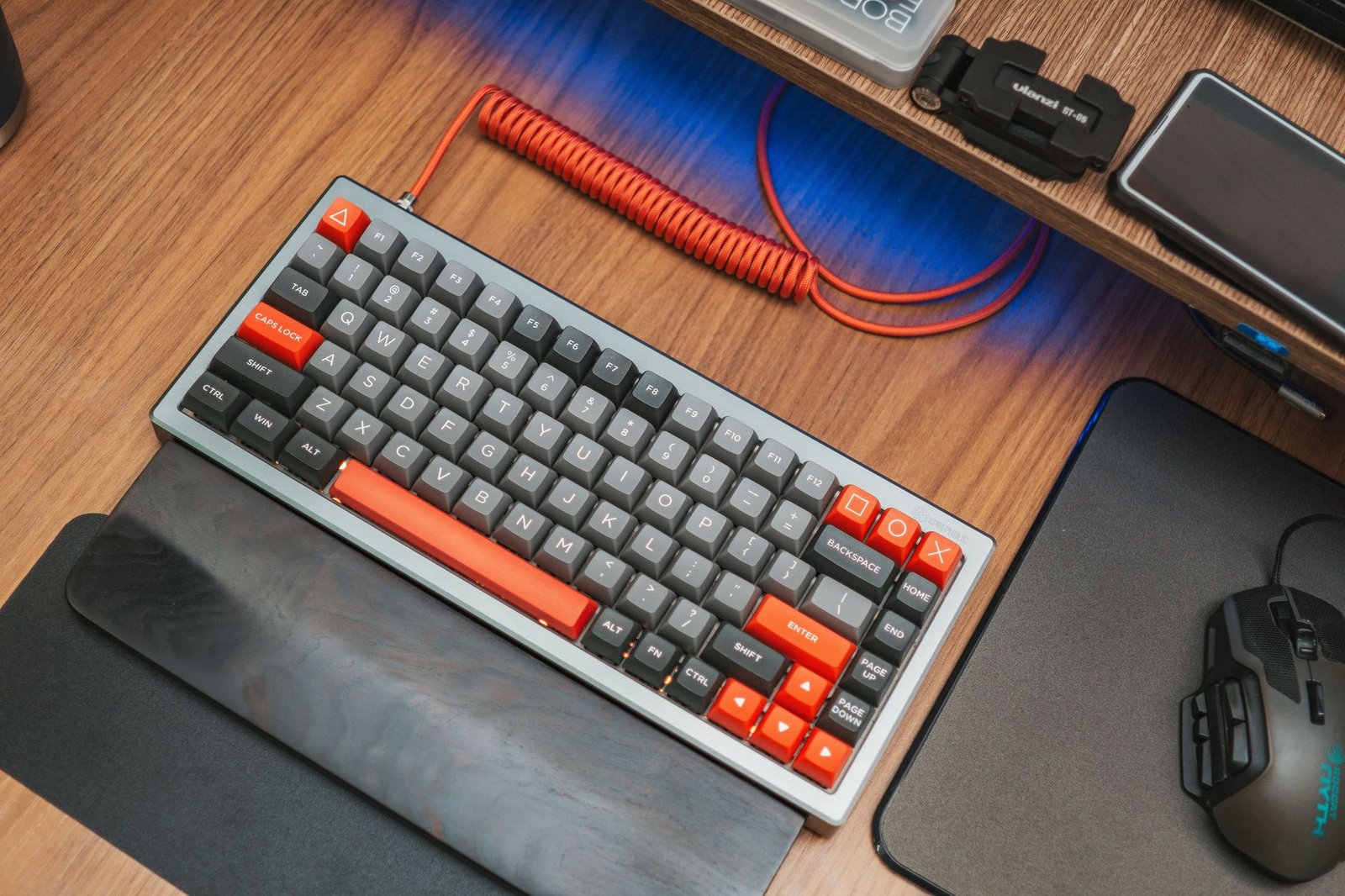
What Makes a Keyboard “Mechanical”?
A mechanical keyboard uses an individual physical switch under every key. When you press a key, that switch registers the press with a distinct feel and, depending on the switch, a satisfying sound. Membrane keyboards, by contrast, use a rubber layer that feels mushy and wears out faster. Mechanical switches are rated for 50 to 100 million presses, so a good board can last a decade. They are also repairable: if one switch fails, you can replace just that switch on many models instead of throwing away the whole keyboard.
Step 1: Pick the Right Size
Size is the first decision, and it depends on your desk and your habits. Full-size (100%) keyboards include the number pad. They are best for accountants, data entry, and anyone who types numbers all day. They take the most desk space. Tenkeyless (TKL, 80%) boards drop the number pad but keep the arrow keys and function row. This is the sweet spot for most people: compact enough for mouse room, complete enough for everyday shortcuts. 75% keyboards squeeze the same keys into an even tighter layout and are very popular in 2026 for clean desks. 65% and 60% boards remove the function row and sometimes arrow keys, relying on key combinations. They are great for minimal setups and travel, but beginners often miss the dedicated arrows. If you are unsure, start with TKL or 75%.
Step 2: Understand Switch Types
Switches decide how typing feels and sounds. They fall into three families. Linear switches press smoothly from top to bottom with no bump. They are quiet-ish, fast, and loved by gamers. Common examples are red and yellow switches. Tactile switches have a small bump you feel when the key registers. They give feedback without much noise, making browns and similar tactile switches the safest first choice for office typing. Clicky switches add a loud click sound on purpose. Blues are the classic example. They are fun at home but can annoy coworkers and family, so avoid them for shared spaces. In 2026, most good keyboards are hot-swappable, meaning you can pull switches out with a small tool and try different ones without soldering. If you are curious about switches, choose a hot-swappable board. It lets your keyboard evolve with your taste. Also look at pre-lubed switches and boards with foam inside the case; they sound deeper and less hollow, a trend that now appears even on budget models.
Step 3: Wired, Wireless, or Both?
Many 2026 keyboards support three connection modes: USB-C wired, Bluetooth, and 2.4GHz wireless with a small dongle. The dongle offers the lowest delay and is best for gaming. Bluetooth is handy for phones, tablets, and quick laptop switches. Wired mode charges the keyboard and gives a flawless connection. If you move between a work laptop and a personal computer, a multi-device board with a mode switch saves real time. Check battery size too: boards with backlights and wireless can last a few weeks per charge, or only days if you keep RGB brightness high.
Step 4: Keycaps and Build Quality Matter
Keycaps are more than decoration. PBT keycaps resist shine and keep their texture for years, while cheaper ABS keycaps become smooth and oily-looking. Double-shot legends will not fade. For the case, aluminum feels premium and solid, while good plastic boards are lighter and cheaper and can still sound excellent thanks to internal foam and gasket mounts. A gasket-mounted keyboard has a slightly soft, cushioned typing feel that many people now prefer over stiff tray-mounted designs.
Step 5: Extra Features Worth Paying For
A volume knob is surprisingly useful. Programmable keys and software remapping help if you repeat the same shortcuts all day. QMK/VIA support, found on many enthusiast boards, lets you remap keys and create layers in your browser. South-facing LEDs work better with many keycap sets. None of these are essential, but hot-swap sockets, PBT keycaps, and multi-mode connectivity are worth having at almost any budget.
How Much Should You Spend?
Under $50, you can already get a hot-swappable board that beats any membrane keyboard. Between $70 and $120 is the value sweet spot: better switches, gasket mounting, wireless, and nicer keycaps. Over $150 buys premium materials, refined sound, and enthusiast features, but the typing improvement over the mid-range shrinks. Beginners should not overspend; a solid mid-range board plus a later switch experiment teaches you more than one expensive purchase.
Final Checklist Before You Buy
Decide your size (TKL or 75% for most people), choose tactile switches for office work or linear for gaming, confirm hot-swap if you like to tinker, prefer PBT keycaps, and pick tri-mode wireless if you use more than one device. Read the return policy too, because keyboard feel is personal. With those basics settled, choosing a mechanical keyboard in 2026 becomes simple, and your hands will thank you every single day.