
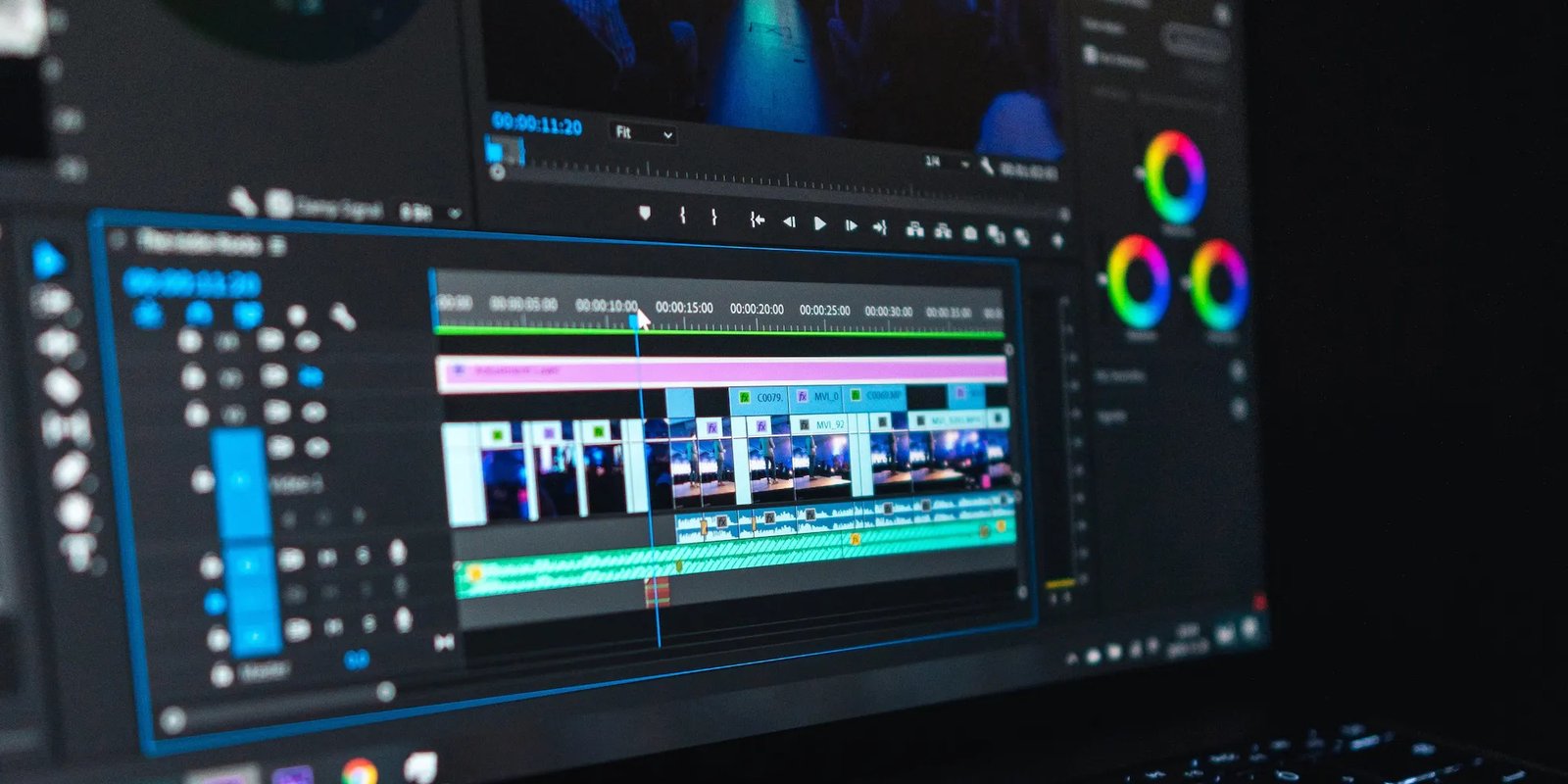
Video is everywhere in 2026: YouTube channels, TikTok clips, online courses, product demos, family memories, and work presentations. The good news is you no longer need an expensive subscription to edit video well. Free video editors have become remarkably capable, handling 4K footage, color correction, captions, and effects that once required professional suites. The challenge is knowing which free tool fits your computer and your style. This guide reviews the best free video editing software of 2026 and helps you pick the right one.
What “Free” Really Means in 2026
Not all free editors are equal. Some are fully free and open source with no watermark. Some are free versions of paid software, adding a watermark or limiting export resolution. Others are free but require a powerful computer. Before downloading anything, check three things: whether exports are watermark-free, the maximum export resolution, and whether the editor runs smoothly on your machine. The picks below are honest about their trade-offs.
DaVinci Resolve: The Professional Powerhouse
Blackmagic Design’s DaVinci Resolve remains the benchmark for free editing in 2026. The free version includes a full timeline editor, excellent color grading tools originally built for Hollywood work, the Fusion effects page, and Fairlight audio tools. It can feel overwhelming on day one because it shows so much at once, but the Cut page simplifies fast editing for social media. Resolve handles 4K timelines well and exports without watermarks. The downside is hunger: it wants a decent graphics card and at least 16GB of RAM for smooth 4K work. If your computer can run it and you are willing to watch a few tutorials, no other free editor offers this much depth.
CapCut Desktop: The Fastest Path to a Finished Video
CapCut, from the makers of TikTok, is the easiest recommendation for beginners and social creators. Its desktop app offers one-click auto-captions that are surprisingly accurate, background removal, trendy effects, a large library of music and templates, and quick exports sized for TikTok, Reels, and YouTube Shorts. Editing feels like arranging blocks rather than wrestling a timeline, yet multi-track editing is there when you need it. The free tier is generous, though some premium effects and cloud features sit behind a paid plan, and you should review its privacy settings carefully before using it for sensitive work footage. For speed and captions, CapCut is hard to beat.
Shotcut: Simple, Open Source, and Watermark-Free
Shotcut is a long-running open-source editor for Windows, Mac, and Linux. It supports almost every format through FFmpeg, offers a clean multi-track timeline, filters for color and audio, and exports in up to 4K with no watermark and no account. The interface looks plainer than its rivals, and it lacks flashy templates, but it is dependable on modest hardware and keeps getting better with frequent updates. If you want a free editor that just works offline and respects your privacy, Shotcut deserves a place on your shortlist.
OpenShot and Kdenlive: Two Open-Source Alternatives Worth Knowing
OpenShot aims at absolute simplicity: drag clips onto tracks, add transitions and titles, export. It is ideal for school projects and family videos on older computers, though heavy projects can strain it. Kdenlive, originally from the Linux world and now strong on Windows and Mac too, sits a step above: multi-track editing, proxy clips for smooth editing of large files, keyframe effects, and a big community of tutorials. Kdenlive suits users who want open-source power without DaVinci Resolve’s hardware demands.
Clipchamp and Canva Video: Browser Convenience
If installing software is not an option, browser-based editors fill the gap. Microsoft Clipchamp, built into Windows 11, offers templates, stock media, text-to-speech, and clean exports; its free tier covers most casual needs. Canva’s video editor is excellent for quick marketing clips, combining drag-and-drop design, captions, and brand elements in the browser. Browser editors depend on your internet connection and upload your footage, so they fit short public projects better than private or very large ones.
Which Editor Should You Choose?
Match the tool to the job. Choose DaVinci Resolve if you want to learn real editing skills and make YouTube videos or short films; your effort pays off for years. Choose CapCut if you post short-form video several times a week and need captions and trends fast. Choose Shotcut or Kdenlive if you want free, offline, watermark-free editing on an average PC or on Linux. Choose Clipchamp or Canva for occasional quick clips without installing anything. Many creators mix tools: edit in Resolve, caption in CapCut.
Tips to Get Pro Results for Free
Software is only half the equation. Record the cleanest audio you can, because viewers forgive soft video faster than bad sound. Cut pauses aggressively; tight pacing matters more than effects. Use free editors’ built-in color presets lightly instead of stacking filters. Generate captions for every social video, since many people watch on mute. Finally, export at the platform’s recommended settings rather than maximum everything: a clean 1080p upload beats a bloated file that gets recompressed poorly.
Conclusion
You do not need to pay to edit like a pro in 2026. DaVinci Resolve offers unmatched professional depth for free, CapCut wins on speed and captions, Shotcut and Kdenlive deliver honest open-source power, and browser editors cover quick jobs anywhere. Download two, edit the same clip in both, and keep the one that feels natural. In video editing, the best software is simply the one you will actually open every day.